Many WordPress site owners face an unspoken problem. They build gorgeous websites using heavy page builders, only to discover their pages take four to five seconds to load on mobile devices. These sites fail Google’s Core Web Vitals, require expensive premium hosting just to handle basic traffic, and suffer in search engine rankings.
Traditional page builders load their entire code framework on every single page, whether you use those features or not. Popular options like Elementor or Divi can add anywhere from 250KB to 400KB of CSS and JavaScript to a basic page.
This is where kadence blocks changes the game. By turning the native WordPress Gutenberg editor into a fully functional page builder, it gives you deep design control without slowing down your server.
What is Kadence Blocks?
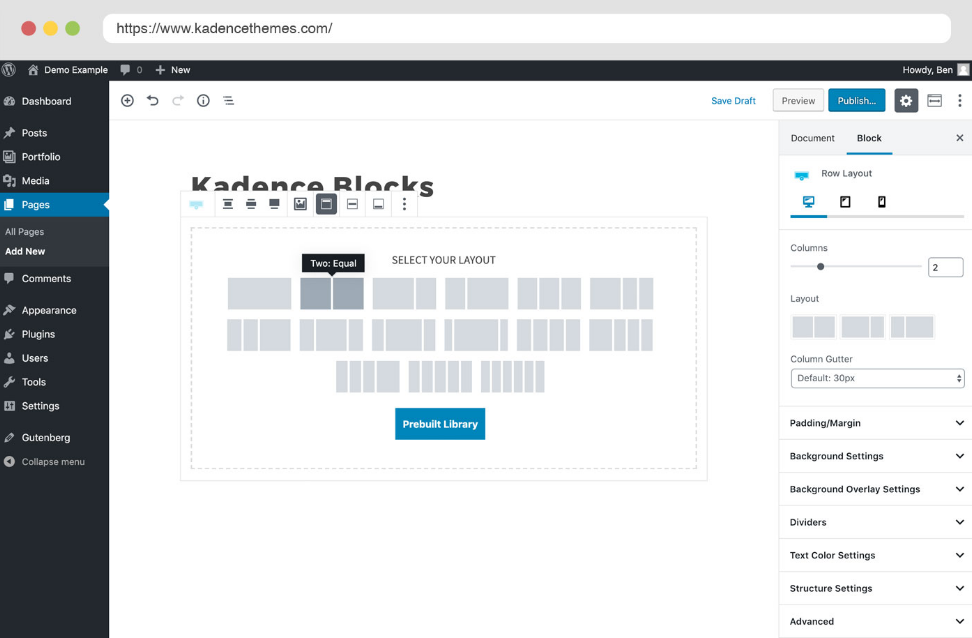
Kadence Blocks is a WordPress plugin that extends the native Gutenberg block editor. Instead of replacing the WordPress editor with a heavy external interface, it adds professional, highly customizable layout controls and functional elements directly into the default system.
Also Read: Tonztech com Review Your Ultimate Guide to Tech, Business & Health Insights
The tool uses a process called intelligent asset loading. The plugin only loads the precise code required for the specific blocks present on a webpage. If you build a simple landing page using only text sections and a contact form, it loads roughly 12KB to 15KB of assets. This lightweight architecture helps your pages load near-instantly, providing a clean foundation to pass Google’s performance benchmarks.
Core Features That Replace Traditional Page Builders
The free version provides everything you need to build clean, high-converting layouts, while the Pro version adds automation, dynamic content, and advanced marketing tools.
The Row Layout and Section Architecture
In standard WordPress, creating complex column structures can feel clunky. The Row Layout block serves as your primary canvas. It allows you to build multi-column structures, control vertical and horizontal alignments, nest layouts, and precisely adjust padding or margins for desktop, tablet, and mobile views independently.
Advanced Text Controls
The default WordPress paragraph block lacks granular typographic styling. The Advanced Text block lets you control font sizes per device breakpoint, set line heights, change colors, and apply custom font families across your site effortlessly.
Advanced Forms and Lead Generation
You no longer need standalone contact form plugins that add extra script weight. The built-in Advanced Form block lets you build contact forms, marketing opt-ins, or customer feedback fields directly inside the editor, maintaining absolute control over the design and layout styling.
Global Design Library
If you suffer from creative block, the Design Library offers hundreds of pre-built sections, patterns, and full-page templates. You can import these layouts with a single click, and they will automatically inherit your site’s global color palette and typography settings.
Performance Comparison: Real-World Data
Let us look at how this ecosystem stacks up against traditional, heavy drag-and-drop page builders in terms of asset weight and average performance scores.
| Builder System | Average Framework Asset Weight | Median Production PageSpeed Score | Core Web Vitals Readiness |
|---|---|---|---|
| Kadence Blocks Native Stack | ~12KB – 15KB | 76 / 100 | High (Native asset loading) |
| Elementor Page Builder | ~250KB+ | 66 / 100 | Requires heavy caching/optimization |
| Divi Builder | ~400KB+ | 61 / 100 | Requires aggressive script deferral |
A Note on Real-World Performance: While controlled speed tests often show perfect 100/100 scores for block-native sites, real-world data shows a median score of 76 due to unoptimized user images, heavy scripts, or poor hosting. The plugin gives you a lightweight foundation, but maintaining strict digital discipline with asset sizes determines your final speed.
Step-by-Step: Building a Layout with Kadence
Building with a block-native workflow requires a slight shift in mindset if you are transitioning from traditional software. Follow this order to keep your layout organized and accessible.
1
Configure Your Global Design Settings
Prerequisite Step
1.Configure Your Global Design Settings:Prerequisite Step.
Before placing blocks, set your global color palette and typography scale in the WordPress Customizer. This ensures every layout you pull from the library matches your branding automatically.
2
Drop a Row Layout Block
Layout Structure
2.Drop a Row Layout Block:Layout Structure.
Add a new block and choose Row Layout. Select your desired column structure (such as a 50/50 split for a hero image and text side-by-side).
3
Adjust Responsive Controls
Mobile Optimization
3.Adjust Responsive Controls:Mobile Optimization.
Click the Row Layout settings panel. Switch the view icon from desktop to mobile to adjust column collapse behavior, padding, and spacing specifically for smartphone viewports.
4
Populate with Content Blocks
Design and Media
4.Populate with Content Blocks:Design and Media.
Insert an Advanced Text block for headings and an Advanced Button block for your call to action. Use native settings to tune hover effects and colors directly.
Keeping Content Helpful: Google Search Update Alignment
The May 2026 Core Update and recent AI Search changes place a massive premium on the user experience and technical efficiency. Google’s algorithm prioritizes clean, fast-loading, highly accessible pages that answer search intent instantly.
- Passing AI Search Filtering: AI-driven search models crawl and summarize clean HTML structures much faster than complex JavaScript rendering engines. Because block layouts produce native WordPress code, search bots read your content easily.
- Accessibility Standards: The design suite prioritizes accessible markup code structure, ensuring screen readers can navigate your headers, tabs, and accordions cleanly.
- Decluttering the User Interface: Instead of using separate third-party plugins for tables of contents, info boxes, and icon lists, using a unified tool eliminates competing scripts, reducing layout shifts.
Conclusion
Kadence Blocks strikes an ideal balance between deep design flexibility and blazing-fast performance. By removing the weight of legacy page builders and adopting an intelligent, modular asset delivery system, you ensure your WordPress site is optimized for both human visitors and modern search engine requirements.
FAQs
Do I need the Kadence Theme to use Kadence Blocks?
No. While it works perfectly with the lightweight Kadence Theme, you can install the plugin on any standard WordPress theme, including official default themes or block-compatible options like Blocksy.
Will installing Kadence Blocks slow down my website?
No, it will not. It employs intelligent asset loading, which means it only triggers the exact styles and scripts required for the elements active on that specific post or page.
Can I migrate my existing Elementor pages automatically?
There is no automated migration tool to instantly convert Elementor or Divi layouts into native blocks. To migrate, you must rebuild your core page templates manually using the Row Layout and Section blocks.
Is Kadence Blocks fully compatible with WooCommerce?
Yes. The ecosystem integrates seamlessly with WooCommerce, allowing you to design clean product grids, customized store landing archives, and high-converting checkouts without code bloat.
For more updates visit: THE SECOND STEP